Visit Claude: https://claude.ai/design
Import Design To WordPress: https://www.darrelwilson.com/hostinger
Download Claude: https://claude.com/download
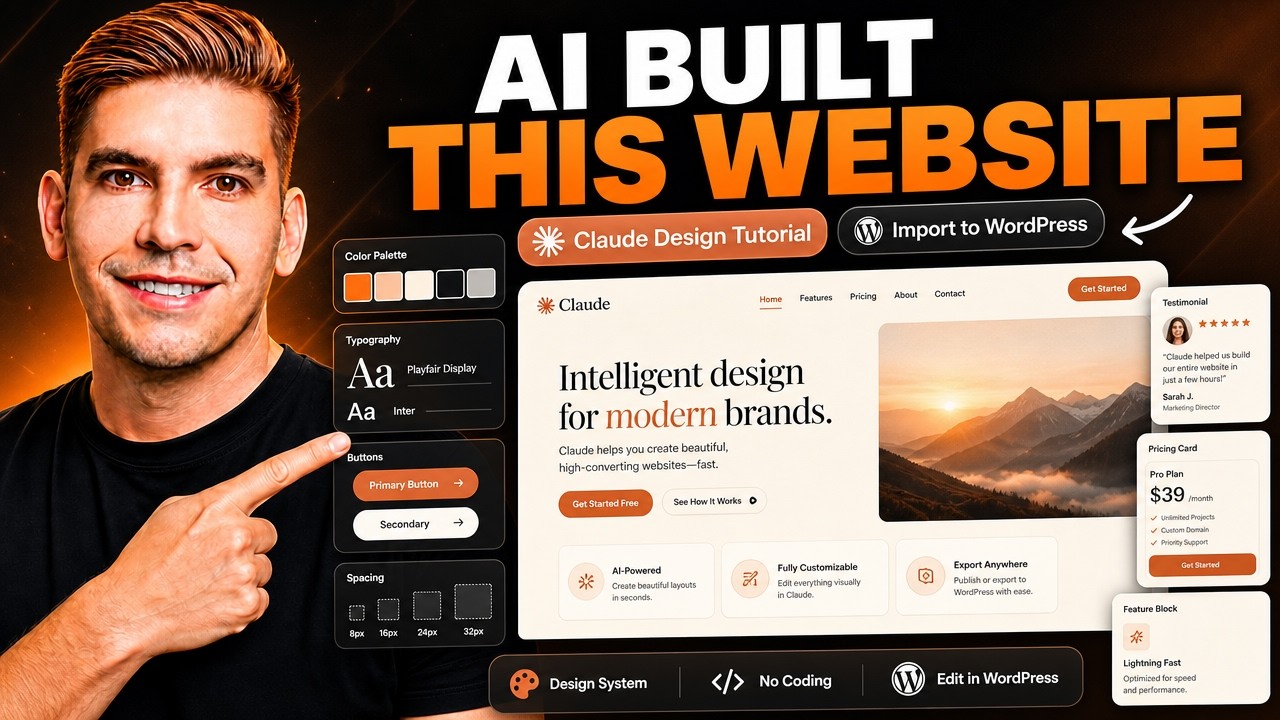
In this Claude AI website design tutorial, I’ll show you how to build a complete website using Claude AI, create a clean design system, and then import that website into WordPress so you can fully customize it with a page builder.
Websites I mentioned:
https://designmd.ai/explore?page=1
https://getdesign.md/
Evernote Prompts: https://lite.evernote.com/note/d7194168-f28f-81a6-d288-7fa79b4c054d
Most people use AI website builders the wrong way. They keep prompting over and over again, trying to fix colors, fonts, sections, buttons, spacing, and mobile design. But in this tutorial, I’ll show you the smarter workflow: using Claude AI to create a professional website design, then organizing the design with a proper design system for fonts, colors, layouts, buttons, and sections.
After Claude creates the website, I’ll show you how to bring that design into WordPress, where you can edit the pages, change the text, update images, customize the layout, and use your favorite page builder like Elementor or another WordPress page builder.
This is perfect for beginners, freelancers, web designers, agencies, and anyone who wants to use AI to build websites faster while still keeping full control inside WordPress.
In this video, you’ll learn:
How to use Claude AI to design a website
How to create a design system with Claude
How to structure fonts, colors, buttons, and sections
How to import an AI-generated website into WordPress
How to customize the website with a page builder
Why WordPress gives you more control than most AI website builders
How to use AI the right way for real web design projects
TimeStamps
0:00 Intro – build a full website in 5 minutes
1:15 The right way to use AI (stop prompting for changes)
2:30 Live demo – editing your AI site in the editor
4:30 What you need (Claude Pro + browser version)
5:45 Accessing Claude Design
6:45 Creating a design system from scratch
8:00 Using design.md and getdesign.md for colors
10:30 Picking a color palette (dog grooming example)
12:30 Generating your design system
14:00 Using a company’s color scheme (Starbucks example)
16:00 Publishing the design system
17:15 Creating your AI website
18:30 The prompt – filling out your business info
22:00 Why keywords and location matter for SEO
24:00 Method 2 – building with a screenshot
26:00 ThemeForest for design inspiration
28:00 Go Full Page screenshot extension
30:00 Reviewing the finished AI website
32:30 Setting up hosting with Hostinger
35:00 Installing WordPress + verifying your domain
38:00 Installing the Astra theme
39:00 Installing plugins (Elementor, WP Forms, XPro)
42:00 Why you need the XPro plugin
44:00 Installing the Nova Mirror plugin
45:30 Elementor settings (disable atomic, enable container)
47:30 Installing Node.js
49:00 Connecting WordPress to Claude
51:00 Setting up Claude Desktop
54:00 Importing your design into WordPress
57:00 Fixing common errors (wrap, padding, colors)
1:01:00 Setting global colors in Elementor
1:03:00 Building your header & footer with XPro
1:06:00 Adding your logo
1:08:00 Final result + wrap up
If you want to build websites faster with AI, but still have full control over your design, layout, SEO, plugins, and customization, this Claude AI to WordPress tutorial will show you the full process step by step.